
A 15-minute Microsoft 365 app-permission review is a first pass over the apps connected to your tenant: what they can read or change, who granted that access, and whether you still need them. In an October 16, 2026 report, Huntress said a compromised credential for ConnectWise Cloud Backup (formerly SkyKick) was used to obtain Microsoft Graph tokens in customer Microsoft 365 tenants. As of 19:00 UTC that day, Huntress had confirmed unauthorized sign-ins in 162 tenants. The lesson for a small business is wider than one vendor: set aside 15 minutes, open the app list, and follow official guidance on anything you do not recognize.
Key takeaways
- A 15-minute Microsoft 365 app-permission review is a first look at connected apps, not a full incident response.
- Huntress reported on October 16, 2026, that a compromised credential for ConnectWise Cloud Backup (formerly SkyKick) was used to obtain Microsoft Graph tokens in customer Microsoft 365 tenants. Huntress confirmed unauthorized sign-ins in 162 tenants as of 19:00 UTC that day.
- ConnectWise says it disabled 7 application identities at 07:00 UTC on October 17, 2026, and revoked the associated credentials.
- An FBI FLASH on November 13 cited attempted sign-ins to more than 2,250 downstream tenants of ConnectWise Cloud Backup customers.
- Huntress also writes that app-only sign-ins involve no user, no device, and no MFA prompt, and that you should review credentials on all of your Microsoft 365 applications.
This post is about the apps connected to your Microsoft 365 tenant, not about a Microsoft 365 service outage. For Copilot-specific risk, see Microsoft 365 Copilot security risks. If you also want a readiness check before you roll Copilot out, see our Copilot readiness assessment.
If you are here because of a recent service disruption, start with our cloud outage business continuity checklist instead.
What is a Microsoft 365 app-permission review?
A Microsoft 365 app-permission review is a short look at the enterprise applications in your tenant and the access each one has. You are asking what this app can do, who allowed it, and whether you still need it. Set aside 15 minutes for a first pass, flag anything unclear, and follow official guidance before you change a production app.
This is not a penetration test, and it is not a promise that 15 minutes will close every risk. It is enough time to open the official app list, mark what you recognize, and write down what you do not.
Why does a Microsoft 365 app-permission review matter now?
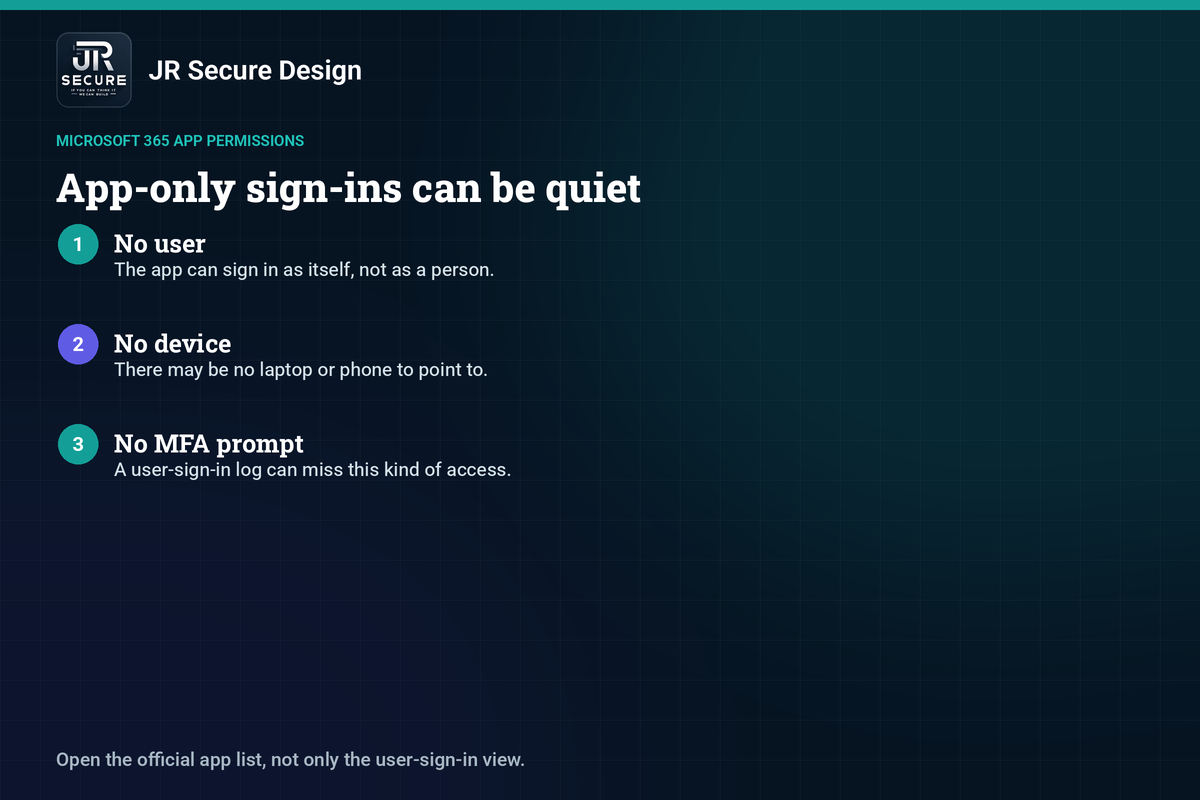
Because a connected app can keep broad access even when no person is signing in. Huntress’s wording is direct: “App-only sign-ins involve no user, no device, and no MFA prompt.” That is why a user-sign-in log is not the whole picture, and why the app list itself is worth opening.
Huntress reported that the ConnectWise Cloud Backup credential was used on October 15, 2026, to obtain Microsoft Graph tokens in customer tenants, and that it had confirmed unauthorized sign-ins in 162 tenants as of 19:00 UTC on October 16.
ConnectWise’s technical investigation and remediation guide, dated October 18, 2026, says that at 07:00 UTC on October 17, 2026, ConnectWise disabled the 7 application identities listed in that guide and revoked the associated credentials. Those were vendor-side steps. ConnectWise also says they “do not change the configuration of enterprise applications within individual partner or customer tenants,” so a local check in your own tenant is still needed.
The FBI’s FLASH-20261113-001, dated November 13, 2026, cites “a supply chain compromise affecting ConnectWise Cloud Backup customers that resulted in attempted sign-ins to more than 2,250 downstream tenants.” That “more than 2,250” figure is attempted sign-ins, described later than Huntress’s 162 confirmed unauthorized sign-ins as of October 16. They are not the same count. Use each one as its source wrote it.
How do you do a 15-minute Microsoft 365 app-permission review?
Open Microsoft’s enterprise-application list, walk the apps you do not recognize, and write down each one’s permissions. Microsoft’s documentation says to sign in to the Entra admin center as at least a Cloud Application Administrator, go to Entra ID, Enterprise apps, All applications, then Permissions. Check the Admin consent and User consent tabs.
A 15-minute first pass
Use official Microsoft screens only. This is a review of your own tenant, with no sample production data and no client names.
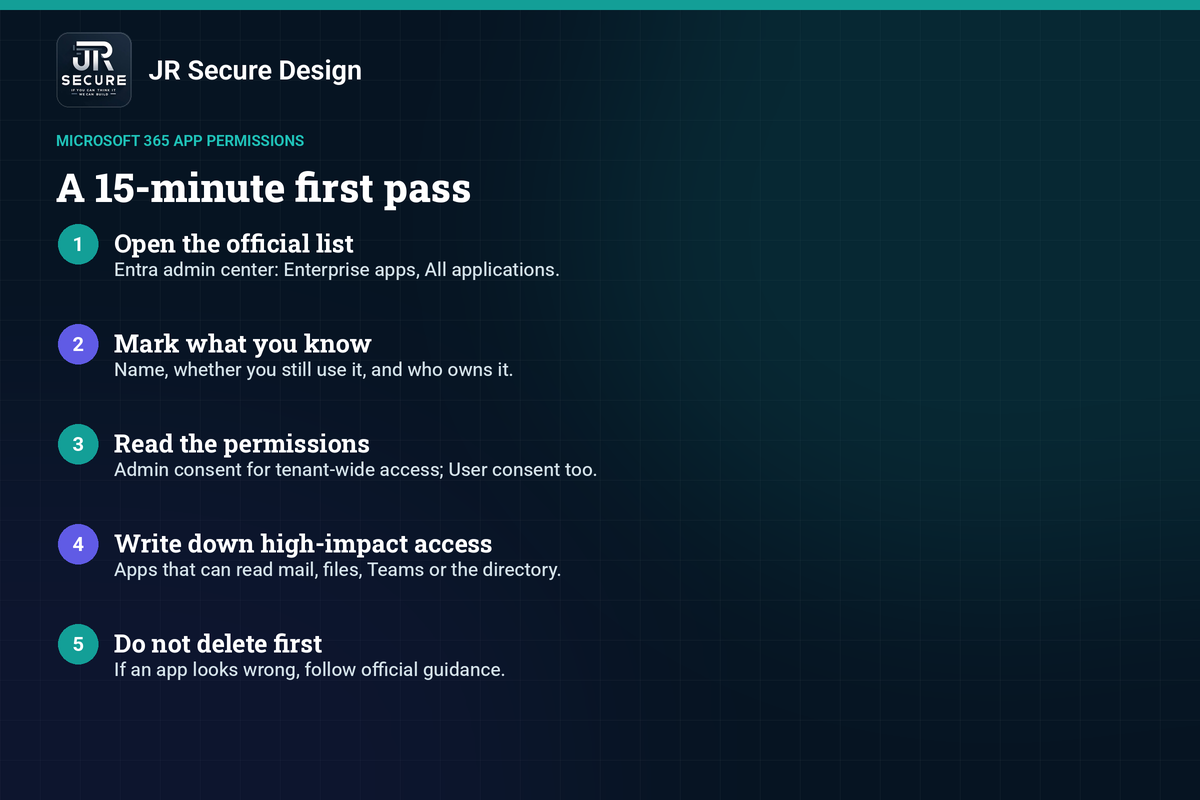
- Open the official list. Sign in to the Microsoft Entra admin center as at least a Cloud Application Administrator, then go to Entra ID → Enterprise apps → All applications.
- Mark what you know. For each app, note the name, whether you still use it, and who owns it. Flag names you do not recognize, including older display names.
- Read the permissions. Open the app, then Permissions. Check the Admin consent tab for tenant-wide access and the User consent tab for access granted for a person or group.
- Write down high-impact access. Note apps that can read mail, files, Teams, or the directory, and apps nobody on your team can explain.
- Do not delete first. If an app looks wrong, follow the vendor’s and Microsoft’s guidance. Huntress and ConnectWise both say to disable affected apps rather than delete them as a first step, and Huntress says disabling an app “will not remove credentials that were already added.”
Microsoft’s same article describes how an admin can revoke a permission on the Admin consent tab. It also says you cannot revoke user-consented permissions from that User consent tab in the portal, and points to Microsoft Graph or PowerShell for that job. If you are not comfortable in those tools, stop at the written list and have your IT provider or a responder take the next step from Microsoft’s article. This post does not walk through those commands.
For a wider look at sign-in and permission activity, Microsoft also documents application-permission activity in audit logs. Huntress notes that the default User sign-ins view will not show this kind of app sign-in data, so do not treat a quiet user-sign-in tab as a complete all-clear.
Quick check
If you opened Enterprise apps right now, could you name every app that can read mail, files, or your directory? If not, start the 15-minute pass this week.
What should you do if you still have a vendor backup app connected?
Follow the vendor’s current guidance, and review credentials on every Microsoft 365 application, not only the one named in the incident. Huntress said: “You must review the credentials on all of your M365 applications.” Do not re-enable affected apps until the vendor confirms that credentials have been reset.
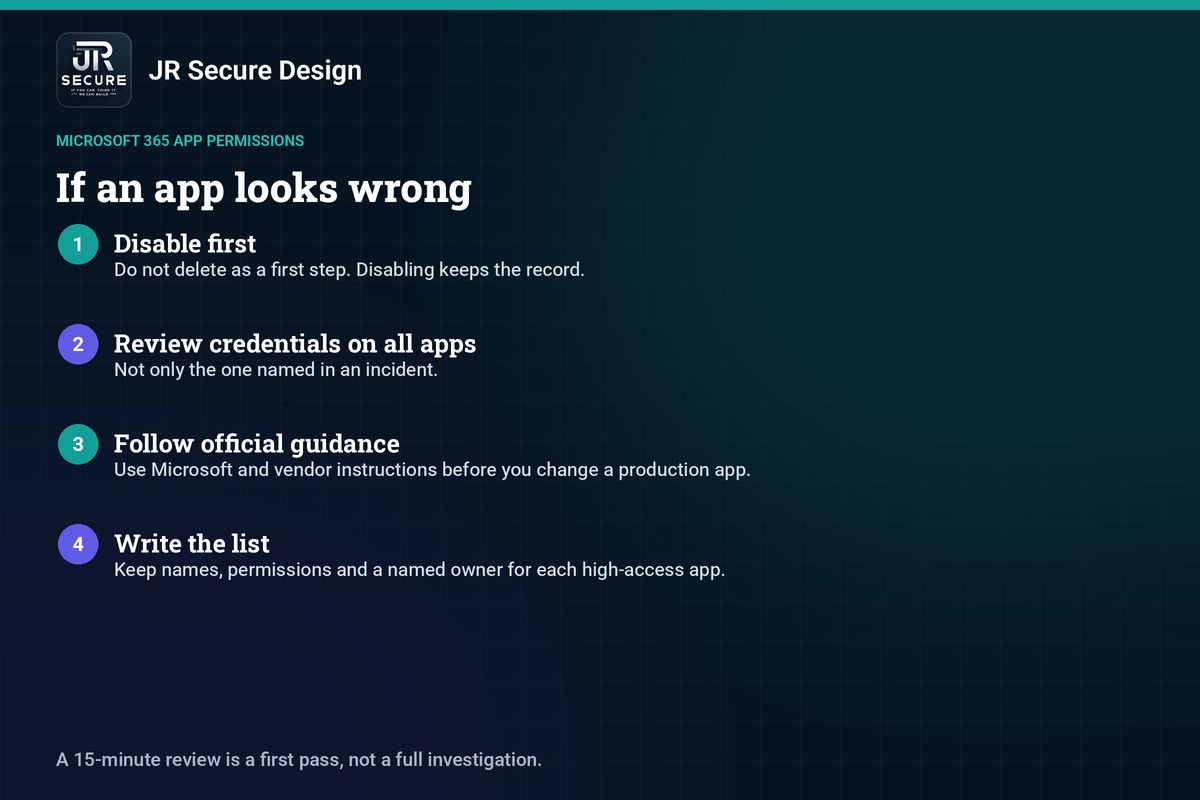
ConnectWise’s guide says to match apps by application ID rather than display name, because older installations may still show SkyKick names, and to keep affected connections disabled until ConnectWise provides formal restoration instructions. If this incident applies to your tenant, use those two primary pages — the Huntress report and the ConnectWise guide — rather than a summary in a blog post. The FBI FLASH also recommended reviewing every Microsoft 365 tenant where the affected applications are currently or were previously installed or authorized, even if the integration is no longer in use.
If you want a structured look at the AI tools and connected apps you already run, see our AI security assessment.
Microsoft 365 app permissions: frequently asked questions
Is 15 minutes enough to finish the whole job?
It is enough for a first pass, not for a full investigation. In 15 minutes you can open the official app list, mark what you recognize, and write down high-impact or unknown permissions. If you find an app you cannot explain, or if vendor incident guidance applies to you, follow that guidance and give the work the time it needs.
Will this review break our email or backups?
A read-only pass through the app list and permissions tabs does not, by itself, turn services off. Changes can. Write the list first, then follow Microsoft and vendor guidance before you disable or revoke anything. For the October incident, Huntress and ConnectWise say to disable affected apps rather than delete them first.
Why isn’t a user-sign-in log enough?
Because some apps sign in as themselves. Huntress writes that app-only sign-ins involve no user, no device, and no MFA prompt, and that the default User sign-ins tab will not show this data. A quiet user-sign-in view can miss an application sign-in. Open the enterprise-application list and, when needed, the app-permission audit log Microsoft documents.
What if I use a partner or IT provider to manage Microsoft 365?
Ask them to run this 15-minute pass with you, or to send you the app list and permissions they found. ConnectWise’s guide notes that reviewing your own tenant does not review a customer’s tenant, so each tenant needs its own check. Keep a written list of high-access apps and a named owner for each one.
Should I remove every third-party app I find?
No. Many connected apps are still in daily use. The aim of this review is to see the access clearly, keep what you need, and follow official guidance on anything unused or unexplained. “Review,” not a blanket removal, is the right first move. If an incident guide applies to a specific app, follow that guide rather than inventing a shortcut.
Want help reading the apps connected to your Microsoft 365 tenant?
Ask Sophia, our free AI advisor, at jrsecuredesign.com/sophia, or talk with James.
JR Secure Design builds AI and security programs aligned to NIST AI RMF and ISO/IEC 42001. More at jrsecuredesign.com.