
AI agents for business should get the least access that still gets the job done. Before an agent touches your email, files or accounts, set seven permissions: its own account, read-only by default, a short tool list, limited folders, a person on every send or payment, logging, and a tested kill switch. Then widen access slowly.
Key takeaways
- OWASP names three root causes of “excessive agency”: excessive functionality, excessive permissions and excessive autonomy.
- Give each agent its own account, so you can see and cut off exactly what it does.
- Read-only is the safe default. Sending, paying, deleting and sharing wait for a person.
- A kill switch is only real if you’ve tested it.
- Review agent permissions on a schedule, like any other account.
- Add six security checks to the permissions: no secrets in prompts, untrusted input, vendor terms, register and owner, pre-launch test, quarterly review.
What permissions should an AI agent have?
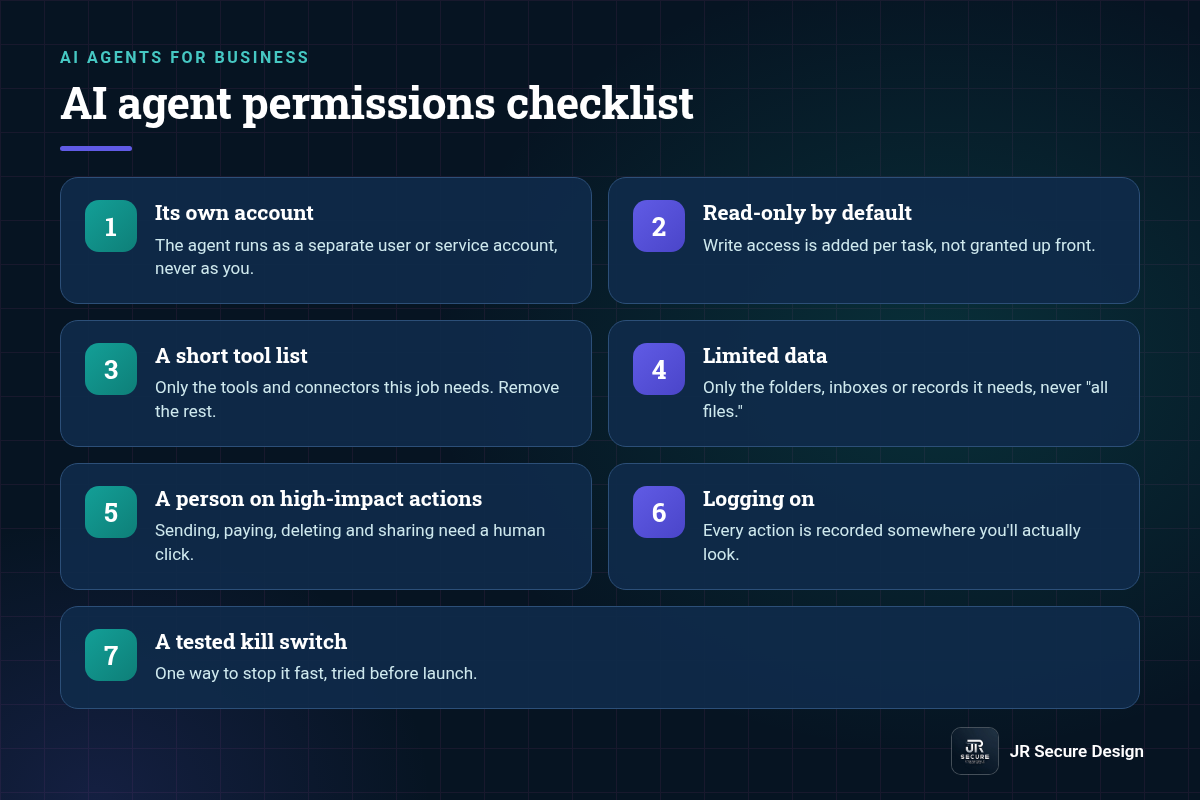
An AI agent should have only the permissions its one job needs. If it summarizes email, it needs read access to one inbox, not send rights or your whole drive. Start read-only, give it its own account, limit folders and tools, and make high-impact actions like sending, paying or sharing wait for a person.
7 permissions to set before go-live
- Its own account. The agent runs as a separate user or service account, never as you.
- Read-only by default. Write access is added per task, not granted up front.
- A short tool list. Only the tools and connectors this job needs. Remove the rest.
- Limited data. Only the folders, inboxes or records it needs, never “all files.”
- A person on high-impact actions. Sending, paying, deleting and sharing need a human click.
- Logging on. Every action is recorded somewhere you’ll actually look.
- A tested kill switch. One way to stop it fast, tried before launch.
Why does an AI agent need its own account?
So you can see and limit exactly what it does. If an agent runs under your login, it gets everything you can reach, and its actions look like yours in the logs. A separate account lets you grant narrow access, review its activity on its own and shut it off without locking yourself out.
How do you limit an AI agent to the tools it’s allowed to call?
List the tools the job needs, connect only those, and remove the rest. OWASP‘s guidance on excessive agency says to minimize extensions, minimize their functionality and minimize their permissions. In practice, if an agent only needs to read a calendar, don’t connect a tool that can also edit or delete events.
Be careful with “all-in-one” connectors. A single email connector may read, send, delete and forward. If your platform lets you, turn off the actions the job doesn’t need. If it doesn’t, give the agent’s account only read rights at the source, so a send request fails even if the agent tries.
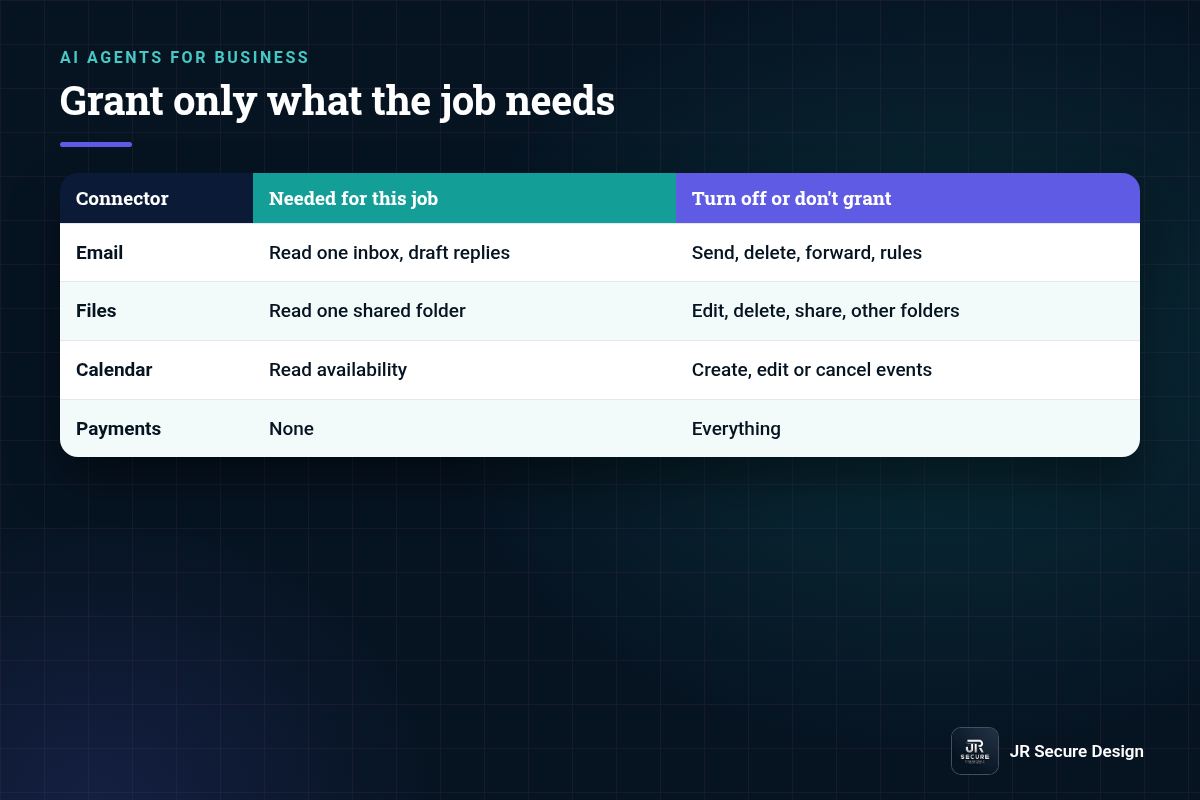
| Connector | Needed for this job | Turn off or don’t grant |
|---|---|---|
| Read one inbox, draft replies | Send, delete, forward, rules | |
| Files | Read one shared folder | Edit, delete, share, other folders |
| Calendar | Read availability | Create, edit or cancel events |
| Payments | None | Everything |
This matters because agents can be misled. A hidden instruction in an email or web page can push an agent to act, which is called prompt injection. Our guide to what prompt injection is explains how. Tight permissions limit the damage.
What is a kill switch for an AI agent, and how do you test it?
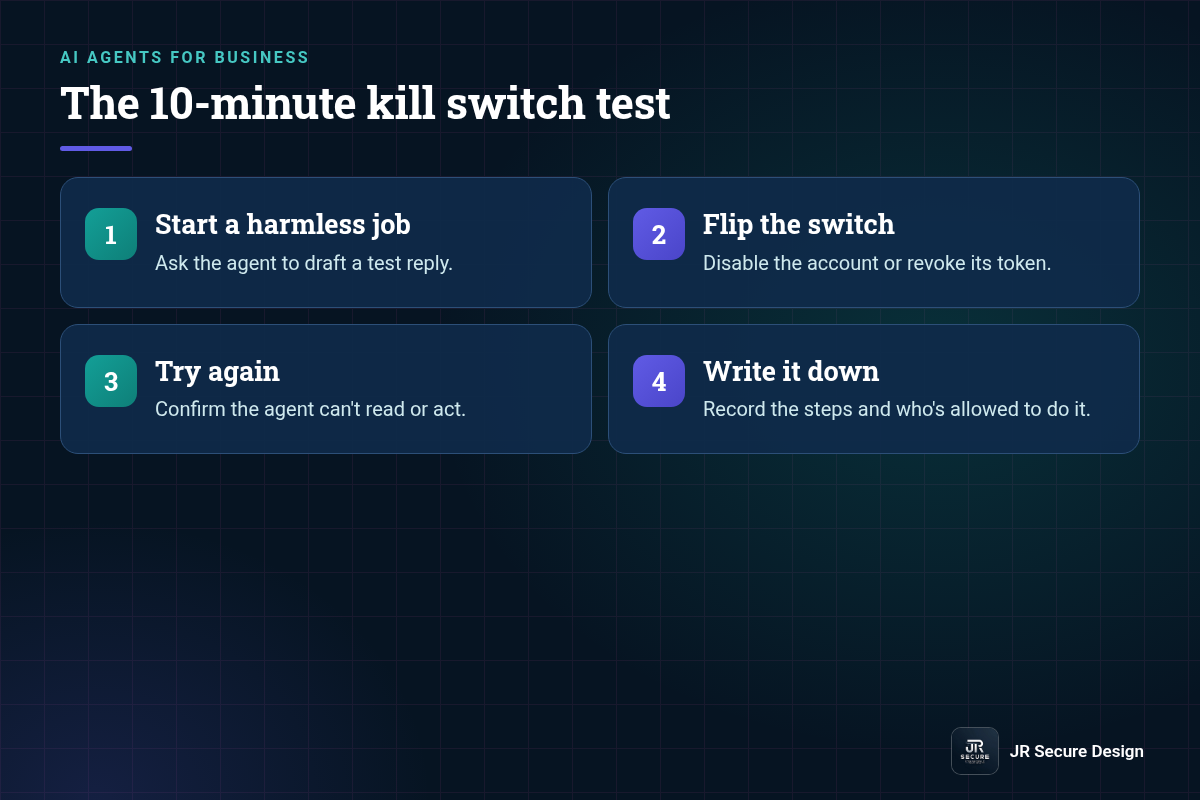
A kill switch is one fast way to stop an agent from acting, such as disabling its account, revoking its access tokens or pausing its workflow. Test it before launch: start a harmless task, trigger the switch, and confirm the agent stops and can’t reach your data. Write down who can flip it and how.
The 10-minute kill switch test
- Start a harmless job. Ask the agent to draft a test reply.
- Flip the switch. Disable the account or revoke its token.
- Try again. Confirm the agent can’t read or act.
- Write it down. Record the steps and who’s allowed to do it.
QUICK CHECK: For every agent you run today, answer one question: “If it started sending emails right now, how would I stop it, and how long would it take?” If you’re not sure, test the kill switch this week.
What else belongs on an AI agent security checklist?
Beyond permissions, an AI agent security checklist covers six more items: keep passwords and API keys out of prompts, treat emails and web pages as untrusted input, check what the vendor stores or trains on, record the agent and its owner in your AI tools register, test it on fake data before go-live, and review it every quarter.
CHECKLIST: 6 security checks to add to the 7 permissions
- No secrets in prompts. Passwords, API keys and tokens live in the platform’s secret store, never in instructions or files the agent reads.
- Untrusted input stays untrusted. Emails, web pages and uploaded files can carry hidden instructions. The agent can’t act on them without a person’s OK.
- Vendor data terms checked. Know what the platform stores, for how long, and whether it trains on your data.
- On the register, with an owner. Every agent has a row in your AI tools register and one named person responsible.
- Tested before go-live. Run it on fake data first, including a test message that tries to trick it.
- Reviewed every quarter. Permissions, logs and the kill switch, checked like any other account.
Get a ready-made AI tools register in our free AI acceptable use policy template kit. Insurers ask about this too: see cyber insurance AI questions on human review and logging.
New to agents? Start with our guide to AI agents for small business, which covers a safe first read-only job. For a review of the agents and AI tools you already run, see our AI security assessment.
AI agent permissions: frequently asked questions
Should an AI agent ever have admin access?
Almost never. Admin access lets an agent change settings, add users and reach everything, so one mistake or hidden instruction can do serious harm. If a task truly needs admin rights, have the agent draft the change and a person apply it. Keep admin accounts for people, protected with multi-factor login.
How often should I review AI agent permissions?
Review them at least quarterly, and any time you change what an agent does, add a connector or see an action you didn’t expect. Treat agents like employees with system access: check what each can reach, remove what it no longer needs and confirm the kill switch still works. Put the date on your calendar.
What should AI agent logs record?
Logs should record what the agent did, when, with which account, and what data or tools it used. At minimum, keep a record of every send, edit, delete and share. Store logs somewhere the agent can’t change, and have a person skim them weekly at first, then monthly once things look normal.
Can an AI agent sign off on its own actions?
It shouldn’t for anything that matters. Letting an agent confirm its own sends, payments or sharing changes removes the check that catches mistakes and misleading instructions. OWASP recommends requiring a person to confirm high-impact actions. Keep that step even when the agent has been reliable, because one bad input is enough.
Do AI agent permissions differ between tools like Copilot and custom agents?
The principle is the same: least access for the job. Built-in assistants usually act with the signed-in user’s permissions, so cleaning up who can see which files matters. Custom agents often use their own accounts and tokens, which you set directly. Either way, check what each can reach before go-live.
Running agents already, or about to?
We’ll help you set permissions, logging and a kill switch that actually works. Ask Sophia, our free AI advisor, at jrsecuredesign.com/sophia, or talk with James.
JR Secure Design builds AI and security programs aligned to NIST AI RMF and ISO/IEC 42001. More at jrsecuredesign.com.