
Fix sharing before you add AI on top of it.
- 6-step oversharing check
- Regulated businesses
- Copilot data security
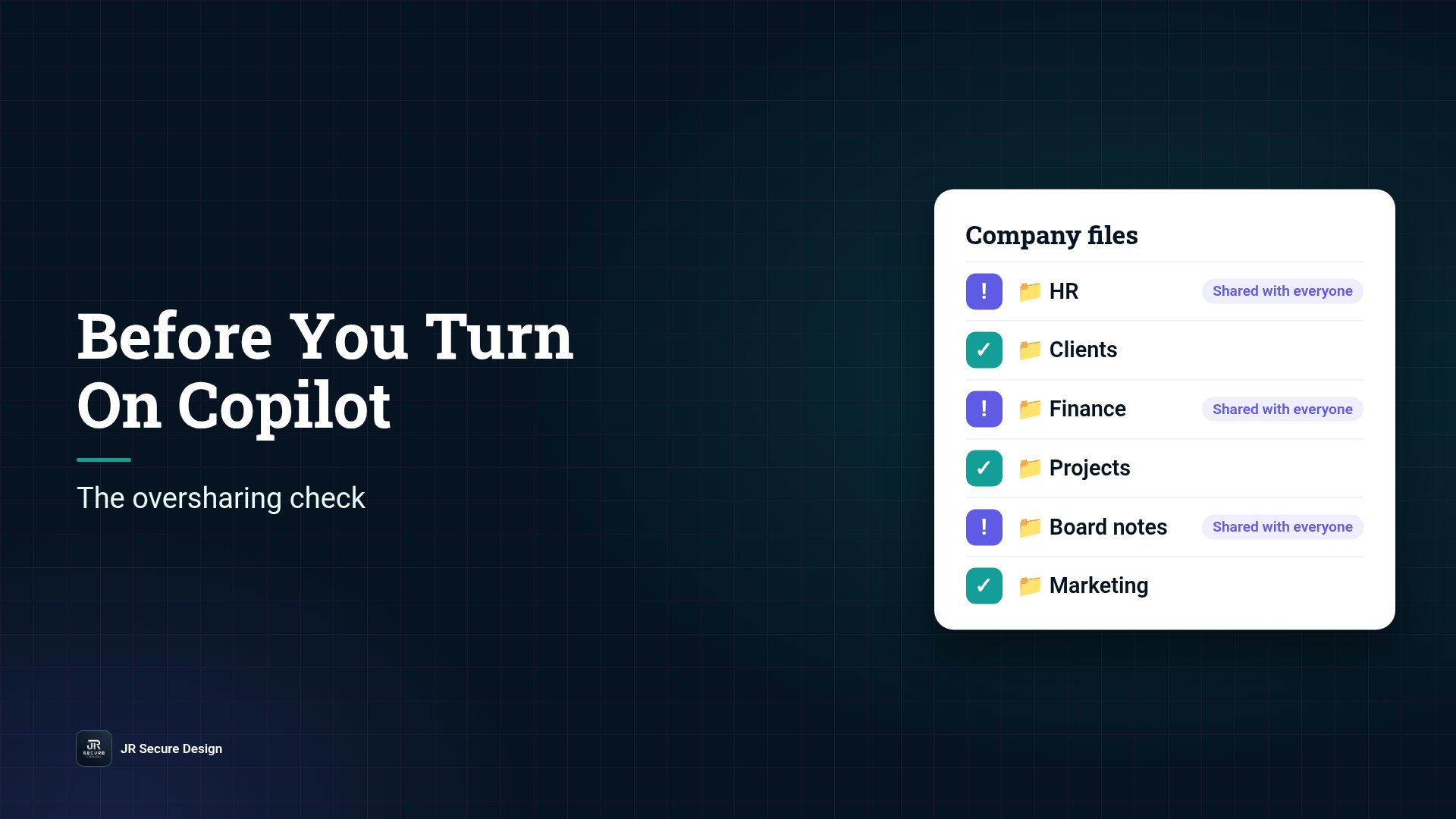
Copilot oversharing is when Microsoft 365 Copilot can find and summarize files a user can open but shouldn’t, through “anyone with the link” shares, old team sites or groups that include everyone. Copilot uses the permissions you already have. Before you turn it on, check who can open what, clean up broad sharing and label your most sensitive data.
Key takeaways
- Copilot doesn’t change who can open a file. It makes overshared files much easier to find.
- The biggest risks are old sharing links, broad groups, and forgotten sites and folders.
- Clean up access first, then roll out to a small pilot group.
- Sensitivity labels and clear AI rules help protect your most important data.
- Planning a rollout? Book a 30-minute call about a Copilot readiness assessment.
Copilot can save real time: drafting emails, summarizing meetings, pulling answers from documents. Microsoft explains that Copilot only shows users data they already have permission to access (Microsoft Learn: Data, privacy, and security for Microsoft 365 Copilot). That’s the good news and the catch. In most small businesses, permissions have grown messy over years. A salary spreadsheet shared “with everyone” in 2021 was hard to stumble on. With Copilot, someone can ask a question and get the answer in seconds.
After 25+ years in technology and security, we treat this as a simple rule: fix sharing before you add AI on top of it. Here’s the check.
Planning a Copilot rollout?
Book a 30-minute call about a Microsoft 365 Copilot readiness assessment.
Or call (202) 892-7189. Or email sales@jrsdi.com.
Why oversharing becomes a bigger problem with Copilot
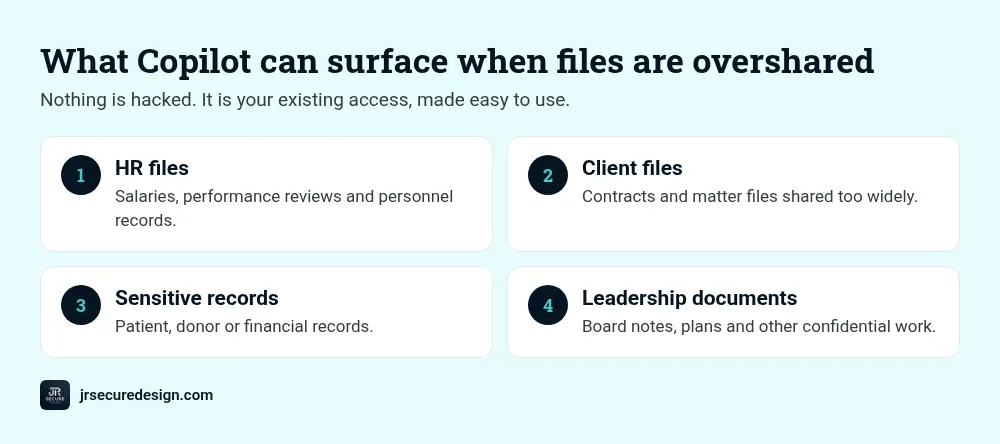
Without Copilot, overshared files are protected by obscurity: people would have to know where to look. Copilot removes that. It searches across email, chats, OneDrive, SharePoint and Teams that a user can reach, and it answers in plain language. Nothing is “hacked.” It’s just your existing access, made very easy to use.
Common examples of what can surface:
- HR files, salaries, or performance reviews
- Client contracts or matter files
- Patient, donor, or financial records
- Board notes, financial models, or acquisition plans
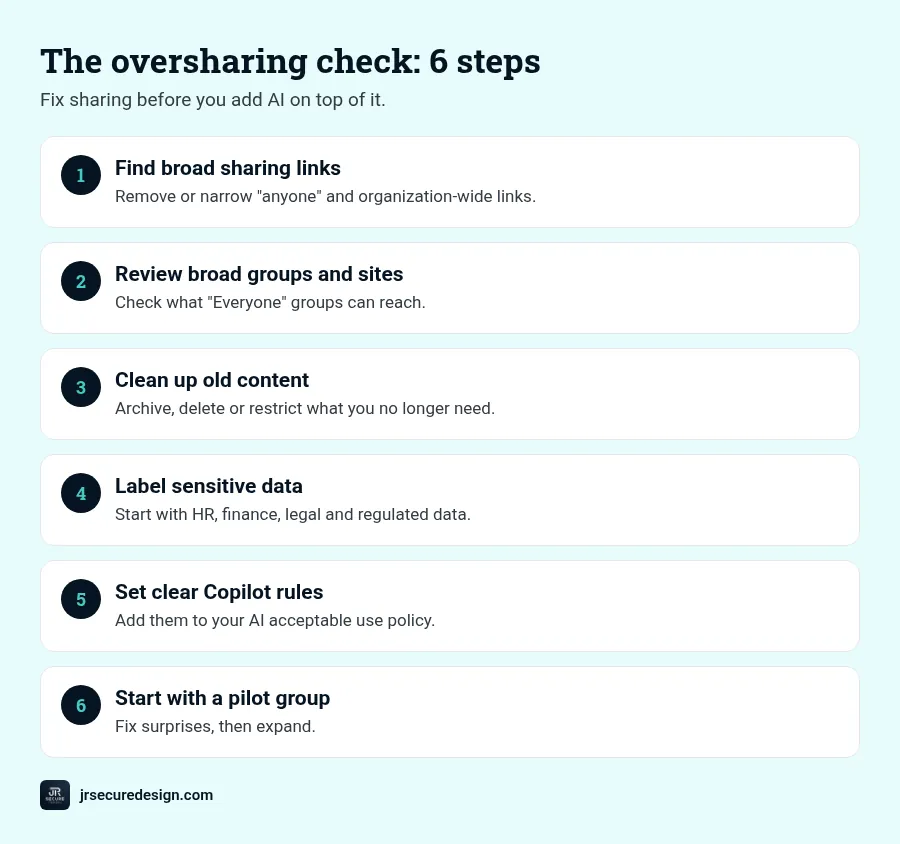
The oversharing check: 6 steps
1. Find “anyone” and organization-wide sharing links
Links that work for anyone, or for everyone in your organization, are the top cause of oversharing. List them, starting with the folders that hold sensitive data, and remove or narrow the ones you don’t need.
2. Review broad groups and team sites
Look for SharePoint sites and Teams that include “Everyone,” “Everyone except external users,” or very large groups. Check what’s actually stored there. Many were created for one project and never closed.
3. Clean up old and orphaned content
Former employees’ OneDrive files, abandoned project sites, and old shared folders often hold sensitive material nobody remembers. Archive, delete, or restrict what you no longer need.
QUICK CHECK: Pick three sensitive files (say, payroll, a key contract, and a client list). Can a regular employee open them today? If yes, Copilot can surface them for that employee.
4. Apply sensitivity labels to your most important data
Microsoft Purview sensitivity labels can mark and protect confidential content. Start small: label your most sensitive categories first, such as HR, finance, legal, and anything regulated. Microsoft’s own deployment guidance covers how labels and data loss prevention fit with Copilot (Microsoft Learn).
5. Set clear rules for using Copilot
Tell people what Copilot is for, what data it may be used with, and what to do if it surfaces something it shouldn’t. Add this to your AI acceptable use policy. Our free AI Acceptable Use Policy template is a quick start.
6. Start with a pilot group
Turn Copilot on for a small group first, such as leadership and a few power users. Ask them to report anything surprising Copilot shows them. Fix those gaps, then expand.
WARNING: Don’t treat licensing as the finish line. Turning on Copilot without checking access is the most common way sensitive files get exposed internally.
Not sure what Copilot could surface today?
A Microsoft 365 Copilot readiness assessment gives you a prioritized cleanup list and a safe rollout plan.
Or call (202) 892-7189. Or email sales@jrsdi.com.
Regulated businesses: extra care
If you handle health, legal, or financial data, check your obligations before rollout. Healthcare organizations should confirm how Copilot fits their HIPAA program, including agreements with Microsoft and which data is in scope. Law firms should think about client confidentiality across matters. When in doubt, ask your compliance advisor and keep the most sensitive data restricted until you’re sure.
Nonprofits and small teams
Small organizations often have the loosest sharing, because everyone wears many hats. The same six steps apply. Even an afternoon spent on steps 1 to 3 can make a big difference.
How this connects to your AI governance
An oversharing check is one part of governing AI in your business: knowing which tools are in use, what data they can reach, and who’s responsible. Our guide on Microsoft 365 Copilot security risks covers the wider picture, and answering AI questionnaires shows how this work helps when insurers and clients ask.
When to get help
If you have years of SharePoint sites, Teams and shared folders, a structured review is faster than guessing. A Copilot readiness assessment looks at sharing, groups, sensitive content and labels, and gives you a prioritized cleanup list and a safe rollout plan.
Frequently asked questions
Is Microsoft Copilot safe for sensitive data?
Copilot respects existing permissions, so it’s only as safe as your access settings. Clean up oversharing, label sensitive data, and set clear rules before rollout.
Can Copilot see all my company’s files?
No. Copilot only uses data each user can already access. The problem is that many users can access more than they should.
What is Copilot oversharing?
When files are shared too broadly, Copilot can surface them in answers to people who were never meant to see them. The fix is to tighten sharing and permissions.
How do I prepare for Microsoft 365 Copilot?
Review sharing links and broad groups, clean up old content, label sensitive data, set usage rules, and start with a pilot group.
How to make Microsoft Copilot HIPAA compliant?
Confirm with Microsoft and your compliance advisor how Copilot fits your HIPAA program, restrict access to patient data, and use labels and policies. Don’t assume it’s covered by default.
Talk to us
Turning on Copilot? Check what it can see first.
We review sharing, groups, sensitive content and labels, and give you a cleanup list and a safe rollout plan, from a team with 25+ years in technology and security.
Learn about our Microsoft 365 Copilot readiness assessment.
Or call (202) 892-7189. Or email sales@jrsdi.com.
Related reading: Copilot Readiness Assessment: What’s Included, How Long · Microsoft 365 Copilot Security Risks · AI Acceptable Use Policy Template · Answering AI Questionnaires · Shadow AI: Signs in Your Company
If you can think it, we can build it securely. Artificial Intelligence · Security · Applications · Hardware