
List it, match it to real use, then cut, combine or cap.
- Where surprise costs come from
- 6-step check
- Savings + security
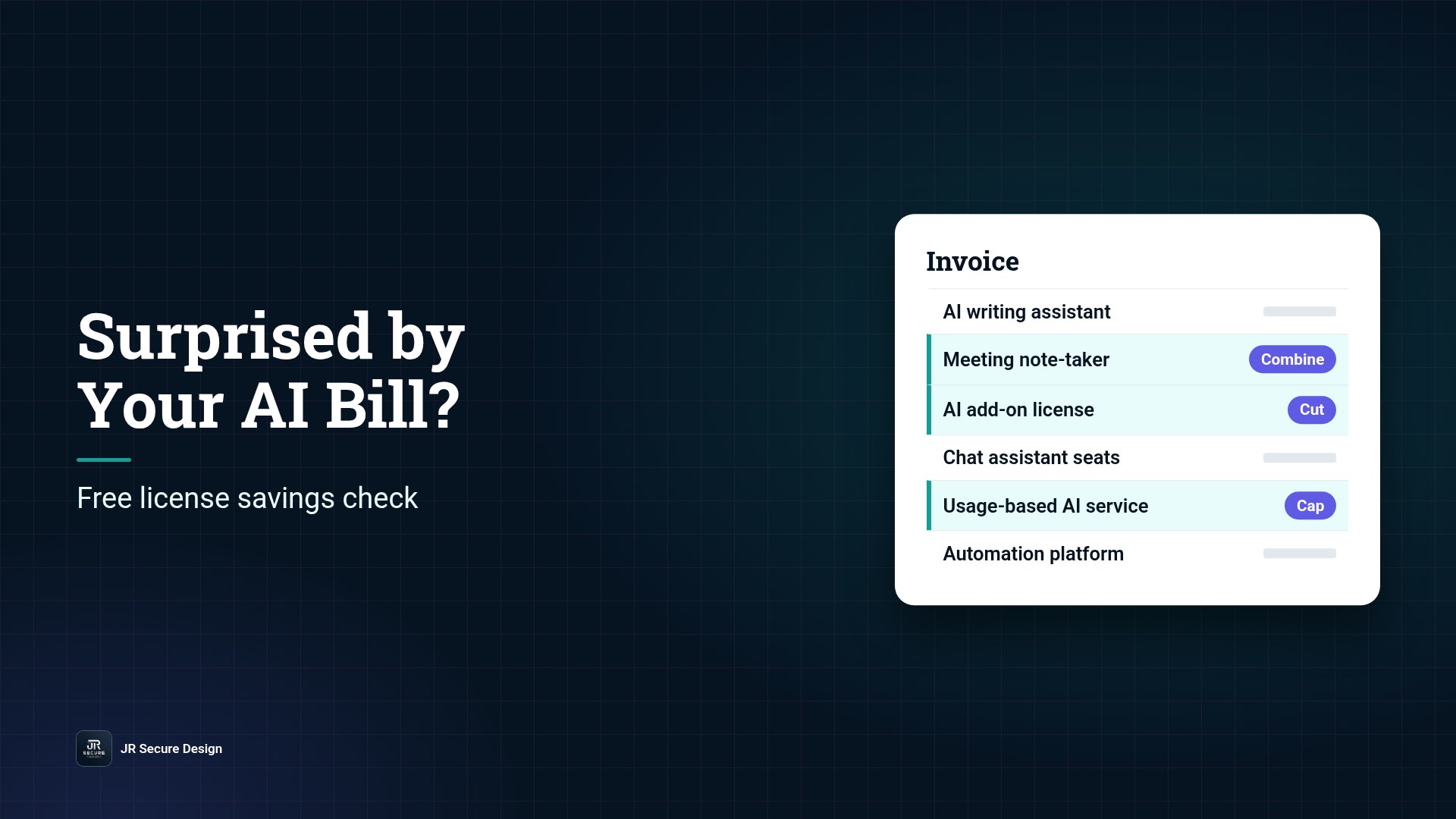
If your AI bill came in higher than you expected, you’re not alone, and the cause is usually findable. Most surprise costs come from four places: usage-based charges nobody is watching, overlapping tools that do the same job, licenses assigned to people who no longer need them, and personal subscriptions expensed one at a time. A license savings check lists what you pay for, matches it to who actually uses it, and flags what to cut, combine or cap.
Key takeaways
- 49% of SMBs that paid for AI got at least one bill higher than expected; 57% in the US (Pax8, Q3 2026).
- Usage-based charges are the hardest to forecast.
- Overlapping tools and idle licenses are the easiest to fix.
- A savings check is also a security check: fewer tools, fewer places data can leak.
- Start with one list: every AI and Microsoft 365 charge, and who uses it.
Pax8’s Q3 2026 SMB AI Pulse surveyed 1,150 small and midsized business leaders. Among businesses that paid for AI in the past year, 49% received at least one bill or usage charge higher than they expected. In the US the figure was 57%. The report notes that usage-based charges are proving the hardest to forecast, and they grow as businesses build more agents and workflows (Pax8, Oct 12, 2026).
That’s not a reason to stop using AI. It’s a reason to look at what you’re paying for with the same care you’d give any other recurring cost.
Surprised by your AI bill?
Book a free 30-minute call and bring your list of tools and licenses.
Or call (202) 892-7189. Or email sales@jrsdi.com.
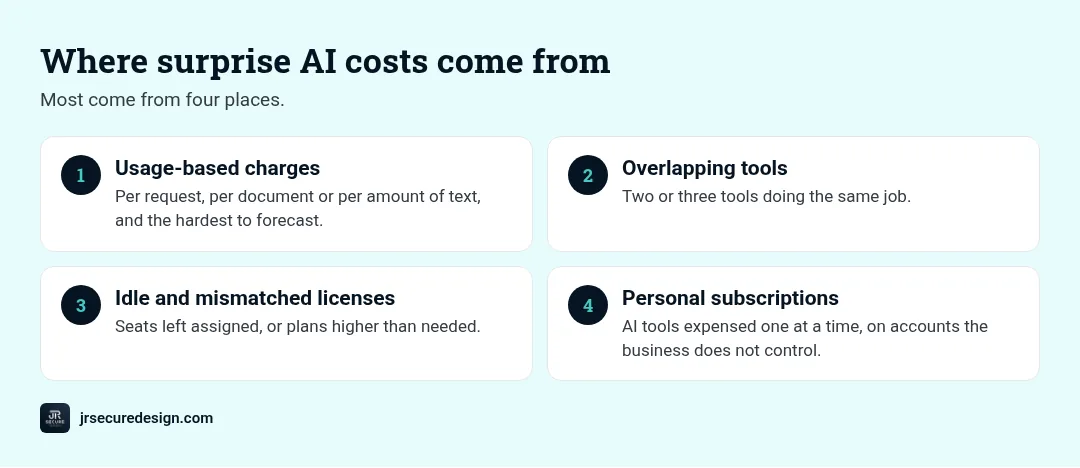
Where surprise AI costs come from
Usage-based charges
Many AI services charge by use: per request, per document or per amount of text processed. An automation that runs every few minutes, or an agent that retries a task when it fails, can quietly multiply charges. Nobody notices until the bill arrives.
Overlapping tools
It’s common to find a team paying for two or three AI writing assistants, a separate note-taker, and AI features already included in software they own. Each one looked reasonable on its own. Together they add up.
Idle and mismatched licenses
Microsoft 365 and AI add-on licenses often stay assigned after someone changes roles or leaves. Others are on a higher plan than the person needs. These are some of the simplest savings to find, because the data is already in your admin center.
Personal subscriptions on expense reports
Staff who sign up for AI tools on their own cards and expense them create costs that never show up in one place. They also create accounts the business doesn’t control, which is a security issue as much as a cost one.
QUICK CHECK: Can you list every AI tool your business paid for last month, and who uses each one? If not, the list is your first saving.
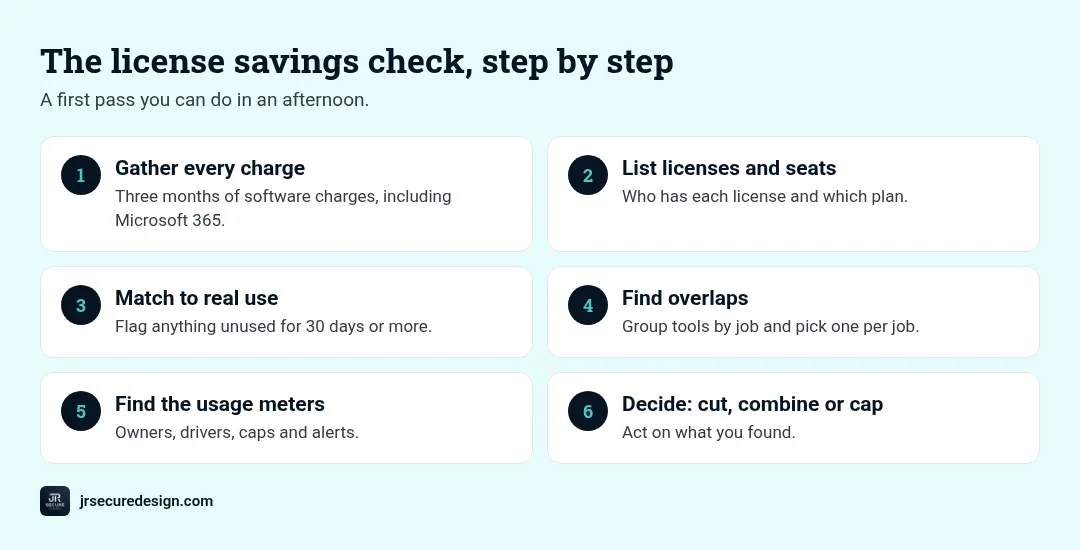
The license savings check, step by step
You can do a first pass yourself in an afternoon.
1. Gather every charge. Pull the last three months of software charges from your card statements, invoices, app stores and expense reports. Include anything with AI in the name or description, and your Microsoft 365 invoice.
2. List licenses and seats. From your Microsoft 365 admin center and each AI tool’s admin page, note how many licenses you have, who they’re assigned to and which plan each person is on.
3. Match to real use. For each license, ask: has this person used it recently? Most admin tools show last sign-in or activity. Flag anything unused for 30 days or more.
4. Find overlaps. Group tools by job: writing, note-taking, research, chat, automation. Where two tools do the same job, pick one.
5. Find the usage meters. For any tool that charges by use, find who owns it, what drives the usage and whether a spending cap or alert is available. Turn on alerts.
6. Decide: cut, combine or cap. Cut what nobody uses. Combine overlapping tools. Cap usage-based services with alerts and owners.
Why savings and security go together
Every AI tool you pay for is also a place your data goes. Fewer tools mean fewer vendors holding your information, fewer accounts to secure and fewer things to remember when someone leaves. When personal subscriptions move to business accounts, you also gain control over who can see the data inside them.
If you’re running a lot of AI usage on sensitive data, a private option may make sense for some workloads. Our guide to private LLMs for business explains when that’s worth considering. Not sure which AI tools your team even uses? Start with our post on the signs of shadow AI in your company.
What to watch for next
- New AI add-ons appearing on existing software bills
- Automations and agents that run on a schedule with no owner
- Trial accounts that quietly turn into paid plans
- Plan changes from vendors that move features between tiers
Put a quarterly reminder on the calendar to repeat the check. It gets faster each time.
Want a second set of eyes on your AI costs?
We walk through your list with you and point out what to cut, combine or cap.
Or call (202) 892-7189. Or email sales@jrsdi.com.
How we can help
With 25+ years in technology and security, we look at AI costs and AI risk together. On a free 30-minute call, we’ll walk through your list with you, point out likely overlaps and idle licenses, and show you where usage alerts belong. You keep the list and decide what to change.
Frequently asked questions
Why is my AI bill higher than expected?
Usually because of usage-based charges, overlapping tools, idle licenses or personal subscriptions expensed separately. Usage-based charges are the hardest to forecast.
How do I find unused Microsoft 365 licenses?
Check the Microsoft 365 admin center for licenses assigned to people with no recent activity, people who’ve left, or people on a higher plan than they need.
How can a small business control AI costs?
Keep one list of AI tools and owners, remove overlaps, turn on usage alerts and caps, and review the list every quarter.
Are we paying for the same AI tool twice?
It’s common. Group your tools by job, such as writing, note-taking or chat, and look for more than one tool doing the same thing.
What is a license savings check?
A review that matches what you pay for, across AI tools and Microsoft 365, against who actually uses it, then flags what to cut, combine or cap.
Want a second set of eyes on your AI costs?
Find the waste in your AI and Microsoft 365 bills.
Book a free 30-minute call. Bring your list of tools and licenses, and we’ll walk through it with you and point out what to cut, combine or cap.
Or call (202) 892-7189. Or email sales@jrsdi.com.
Related reading: Private LLM for Business · Signs of Shadow AI in Your Company · AI Security for Small Business
If you can think it, we can build it securely. Artificial Intelligence · Security · Applications · Hardware · jrsecuredesign.com