
Private AI is only private if it’s locked. If you run your own AI tool — an on-premise LLM on a desk-side box, or a small office server — change the default key before you put real work on it. A model that never leaves the building can still be open to anyone who can reach it. This post gives you 4 checks for common self-hosted tools, including Ollama, Open WebUI, and LiteLLM.
Key takeaways
- Private AI is only private if it’s locked. Change the default key before you put real work on the tool.
- Replace default or example credentials with a unique secret you control.
- An on-premise LLM API with no login should stay on localhost, or sit behind a login you control.
- Set a unique, persistent secret for the UI, and create the admin account yourself.
- Confirm the tool isn’t reachable from outside your machine or trusted network.
If you still need hardware sizing, start with On-Premise LLM Hardware: What a Small Business Needs. For the wider service picture, see private AI infrastructure for business and private LLMs for business. This post is about the lock, not the box.
Why does private AI still need a unique key?
Because running the model yourself does not automatically mean only you can use it. Many tools ship with a documented example key, a default admin login, or no login at all on the local API. If that service is reachable on your network, the fact that the model lives in your office does not keep the prompts, documents, or conversation history private.
CISA’s guidance for small and medium businesses is plain: “Change default passwords.” It notes that many products come “out of the box” with default usernames and passwords that are “widely known and easily exploited,” and that staff should change those credentials before using the systems. In a joint advisory with NSA, CISA also says to “change or disable vendor-supplied default usernames and passwords of services, software, and equipment when installing or commissioning,” and to use strong passwords that are “more than 15 characters and random.” Those steps are aligned to CISA’s Cross-Sector Cybersecurity Performance Goals (CPG 2.A and 2.B).
The same idea applies to a self-hosted AI tool. Change the default key. Don’t copy an example value from a tutorial and leave it in place.
What should you check on an on-premise LLM?
Run these 4 checks on the tool you actually use. The examples below come from each project’s official documentation. Follow the vendor’s current hardening steps for your version, because defaults can change.
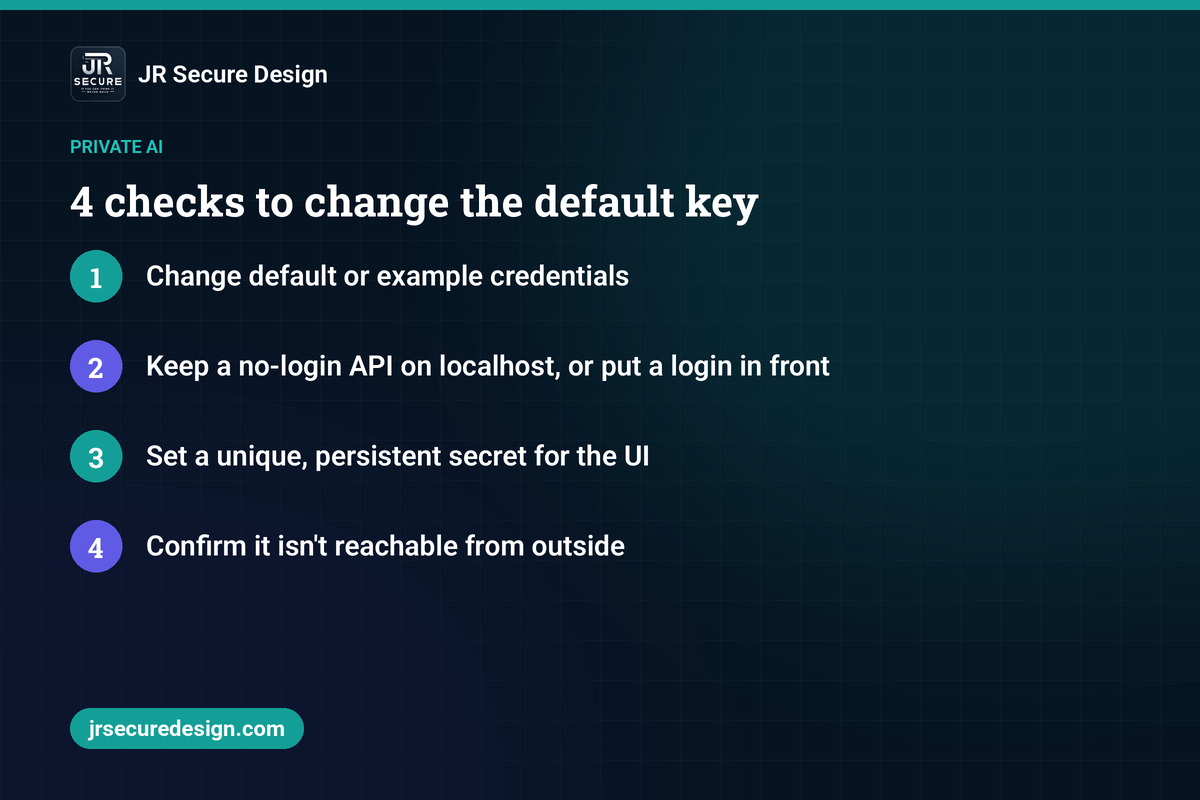
4 checks before you put real work on a self-hosted AI tool
- Change default or example credentials. Replace any documented example key or default admin login with a unique secret you control.
- Keep an unauthenticated API on localhost, or put a login in front. If the model API has no built-in login, don’t leave it listening on the network.
- Set a unique, persistent secret for the UI, and create the admin account yourself. Don’t run the interface with login turned off on anything another machine can reach.
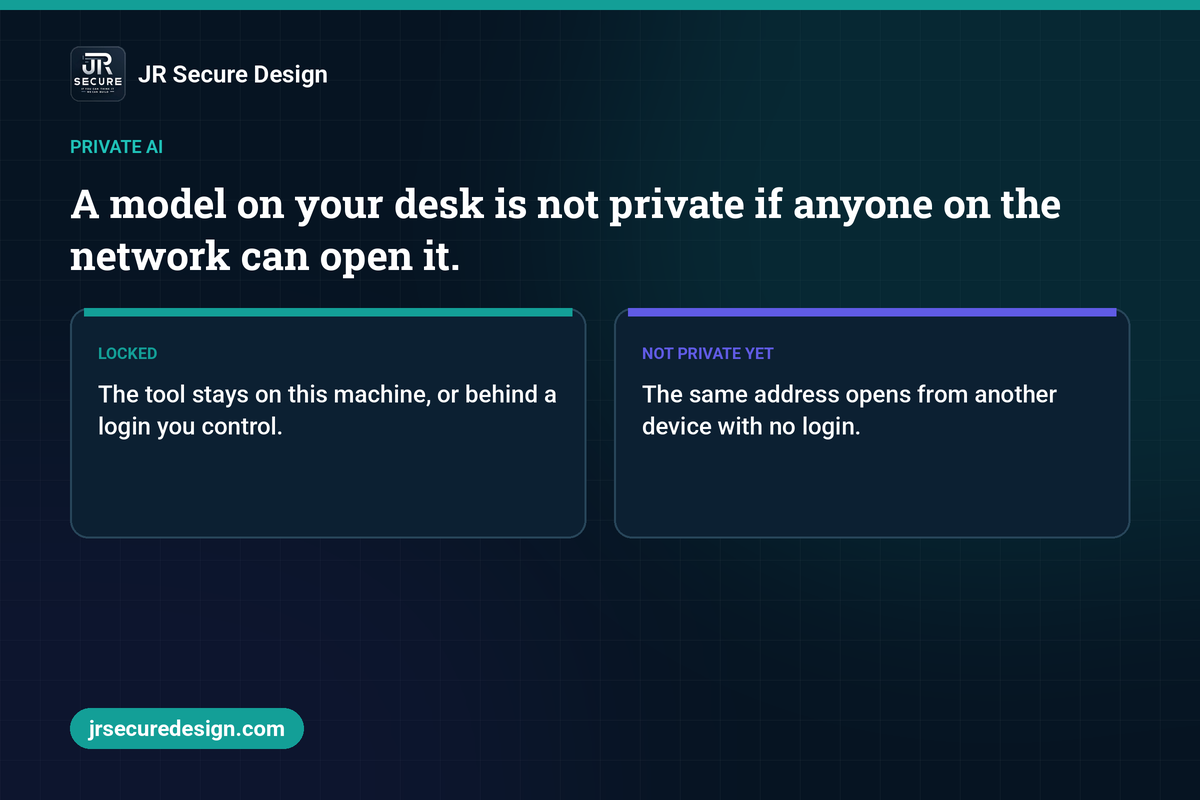
- Confirm it isn’t reachable from outside. From another device, try the same address. If it opens with no login, it isn’t private yet.
1. Change default or example credentials
Start with the admin secret. If the tool has a master key, API key, or admin password, set one you generated, keep it out of chat logs and source control, and don’t reuse a value from a getting-started page.
LiteLLM’s production guidance says the master key is the proxy admin credential: it authenticates admin API calls and is the Admin UI login password. Set LITELLM_MASTER_KEY as an environment variable (it must start with sk-), keep it in your secret manager, and rotate it when needed. LiteLLM’s master-key rotation guide also says a “known unsafe value was widely advertised in LiteLLM’s own docs and tutorials, so anyone who can reach the proxy can guess it.” Newer versions exit at startup if the master key is unset, blank, or matches that publicly known unsafe value. If you set a key from an old tutorial, change it. This post does not reprint the old example.
LiteLLM’s security best practices add two more points that matter for a small office. Applications should use scoped virtual keys, not the master key. And by default the Admin UI accepts a login built from environment variables: UI_USERNAME (default admin) with UI_PASSWORD, and when UI_PASSWORD is unset, the master key itself. LiteLLM calls that a permanent, shared, cleartext admin credential and says to treat it as a bootstrap login only. Create named admin users and turn that environment login off once they can sign in.
2. Keep an unauthenticated API on localhost, or put a login in front
Some on-premise LLM runtimes have no login on the local API. That is reasonable when the API only listens on the same machine. It is not reasonable when the API is open on the office network.
Ollama’s FAQ says: “Ollama binds 127.0.0.1 port 11434 by default.” You change that bind address with the OLLAMA_HOST environment variable. Its authentication page is just as direct: “The local API at http://localhost:11434 does not require authentication.” If you point OLLAMA_HOST at every network interface so other devices can reach it, anyone who can reach that port can use the API — list models, run prompts, and, depending on the setup, pull or delete models — with no key. If you need access from another machine, keep Ollama on localhost and put a VPN, or a reverse proxy that requires a login, in front of it.
3. Set a unique, persistent secret for the UI, and create the admin account yourself
The chat UI is a separate door from the model API. It needs its own secret, and a first admin account you created on purpose.
Open WebUI’s quick start tells you to set WEBUI_SECRET_KEY once and keep it. “Without a fixed key, every recreated container logs everyone out.” Generate a long random value and pass it into the container. The first account you create is the administrator, and “sign-up switches itself off once the admin account exists.” That is the right default. Open WebUI also documents a single-user mode with WEBUI_AUTH=False, which turns login off. Do not use that mode on anything reachable beyond the machine that runs it. You cannot switch between single-user mode and multi-account mode later.
Open WebUI’s hardening guide repeats the first-user behavior and says not to turn open registration back on “on instances that are accessible beyond a trusted network.” If you later allow new accounts, keep them waiting until an admin turns each one on, and don’t leave the UI reachable from the public internet.
4. Confirm it isn’t reachable from outside
The last check is simple and often skipped. From another device — a laptop on the guest network, or a phone that is not on the office Wi-Fi — try the same address you use for the tool. If the page or API opens with no login, the tool isn’t private yet. Move it back to localhost, or put a login in front, then try again.
This is a reachability check of your own system, from a device you control. You do not need a scanner, and you should not go looking for other people’s open tools.
Does changing the default key make private AI safe enough?
It is the first step, not the last one. You still need to decide who can use the tool, which documents it can see, how you back it up, and how you update it. Those are the same questions you would ask of any system that holds client files or internal mail. The 4 checks above only answer the question this post starts with: if you run your own AI tool, is it actually locked?
If you want a structured review of your AI tools, owners, and policies, our AI governance assessment is aligned to the NIST AI Risk Management Framework.
Private AI and default keys: frequently asked questions
Why do I need to change the default key on private AI?
Because a model that runs in your office is not automatically private. If the tool still uses a documented example key, a default admin login, or no login on a network-facing API, anyone who can reach it can use it. CISA tells organizations to change default credentials before they use a system. The same rule applies to a self-hosted AI tool.
Does an on-premise LLM come with a default key?
It depends on the tool. Some, like a LiteLLM proxy, use a master key that must be set to a unique value; older tutorials advertised a known unsafe example, which you should not use. Some chat UIs, like Open WebUI, do not ship a default username and password; you create the first admin account, and you should set a persistent secret key. Some runtimes, like Ollama, have no login on the local API, so the protection is the bind address: keep it on localhost, or put a login in front, if other machines need access.
Is Ollama private if it only runs on my computer?
It is private enough for a single machine when it stays on its default bind address, 127.0.0.1. The local API does not require authentication, which is why that default matters. If you change the bind address so the API listens on the network, it is no longer limited to your computer, and it still has no key. Put a VPN or a reverse proxy with a login in front before you allow access from other devices.
What should I set in Open WebUI and LiteLLM?
For Open WebUI, set a unique WEBUI_SECRET_KEY and keep it, create the first admin account yourself, and leave signup off unless you have a reason to allow new accounts on a trusted network. Don’t turn login off with WEBUI_AUTH=False on anything another machine can reach. For LiteLLM, set a unique LITELLM_MASTER_KEY that starts with sk-, store it in a secret manager, give applications scoped virtual keys instead of the master key, and don’t leave the documented example value or an empty key in place.
How can I tell if my private AI tool is open to the network?
Use another device you control, ideally one that is not on the same trusted network, and try the address you normally use. If the UI or API opens with no login, close that path: bind the service to localhost, or put a login in front, then test again. This is a check of your own system only.
Lock it before you trust it
Private AI is a good fit for work that should stay in-house. It is not a shortcut around basic access control. If you run your own AI tool, change the default key, keep unauthenticated APIs off the network, and confirm that a person sitting nearby — or a device on the guest Wi-Fi — cannot open it.
Want a second look at how your AI tools are locked down?
If you want help reviewing how a self-hosted AI tool is locked, book a call.
JR Secure Design builds AI and security programs aligned to NIST AI RMF and ISO/IEC 42001. More at jrsecuredesign.com.