
Make sure your PDF opens the way you built it.
- Export from 4 tools
- Second-device check
- Decks due Sunday, Oct 25
Export your pitch deck as a PDF from your slide tool, then open the PDF itself on a second device and check four things: fonts, charts, links and the file name. A PDF looks the same on almost any screen, keeps your layout locked, and is the format our upload form accepts. Doing this today means tomorrow’s deadline is just an upload.
Key takeaways
- Send a PDF, not a slide file or an editing link.
- Export from your slide tool, then review the PDF, not the original.
- Check fonts, charts, links and slide order on a second device.
- Name the file clearly: CompanyName-PitchDeck-Oct2026.pdf.
- Decks are due Sunday, Oct 25, 11:59 PM ET. Upload your PDF at jrsecuredesign.com/startups.
You’ve spent weeks on the story. The last thing you want is for the file to let you down: a font that swaps, a chart that turns blurry, or a deck that only opens in the tool you built it in. The fix takes about fifteen minutes. Here’s how to do it, from someone who has spent 25+ years shipping technology that has to work the first time it’s opened.
Deadline tomorrow. Is your PDF ready?
Export it today, check it once, then upload.
Then book a 30-minute call. Or email sales@jrsdi.com.
Why a PDF?
A PDF is the safest way to share a finished deck:
- It looks the same everywhere. Layout, spacing and images stay where you put them.
- It opens without your software. The reader doesn’t need PowerPoint, Keynote or a login.
- It can’t be edited by accident, and it doesn’t expose your comments or version history.
- It’s what we accept. The upload form on our Startups page takes PDF files only.
Sending a live editing link can show drafts, comments or the wrong version. A PDF is a clean snapshot of the deck you mean to send.
How to export from the common tools
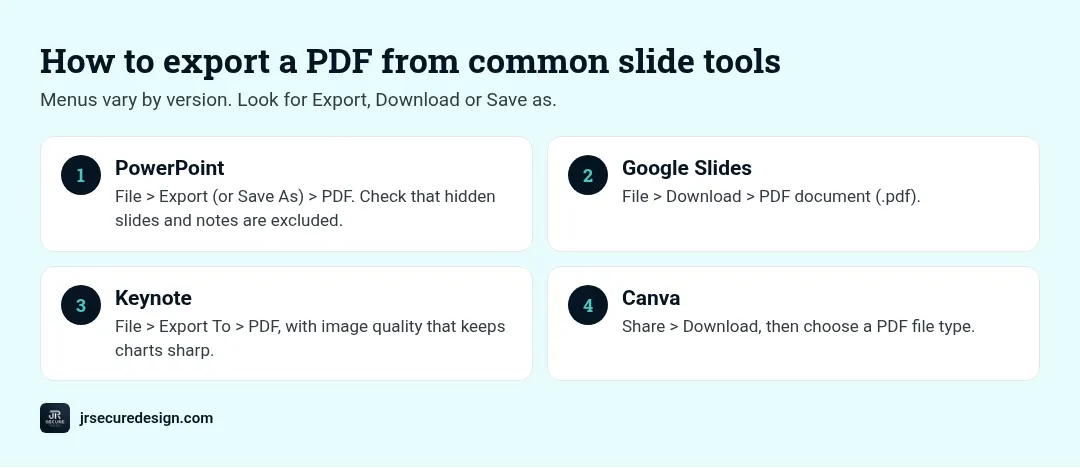
Menus change from version to version, so if a step looks different, look for “Export,” “Download” or “Save as” and choose PDF.
- PowerPoint: use File > Export (or Save As) and choose PDF. On Windows, open Options before saving to confirm hidden slides and notes pages aren’t included.
- Google Slides: use File > Download > PDF document (.pdf).
- Keynote: use File > Export To > PDF, and choose the image quality setting that keeps charts sharp.
- Canva: use Share > Download and choose a PDF file type.
QUICK CHECK: Export only the slides you want them to read. Remove or hide old backup slides first, and make sure hidden slides stay hidden in the export.
Check the PDF on a second device
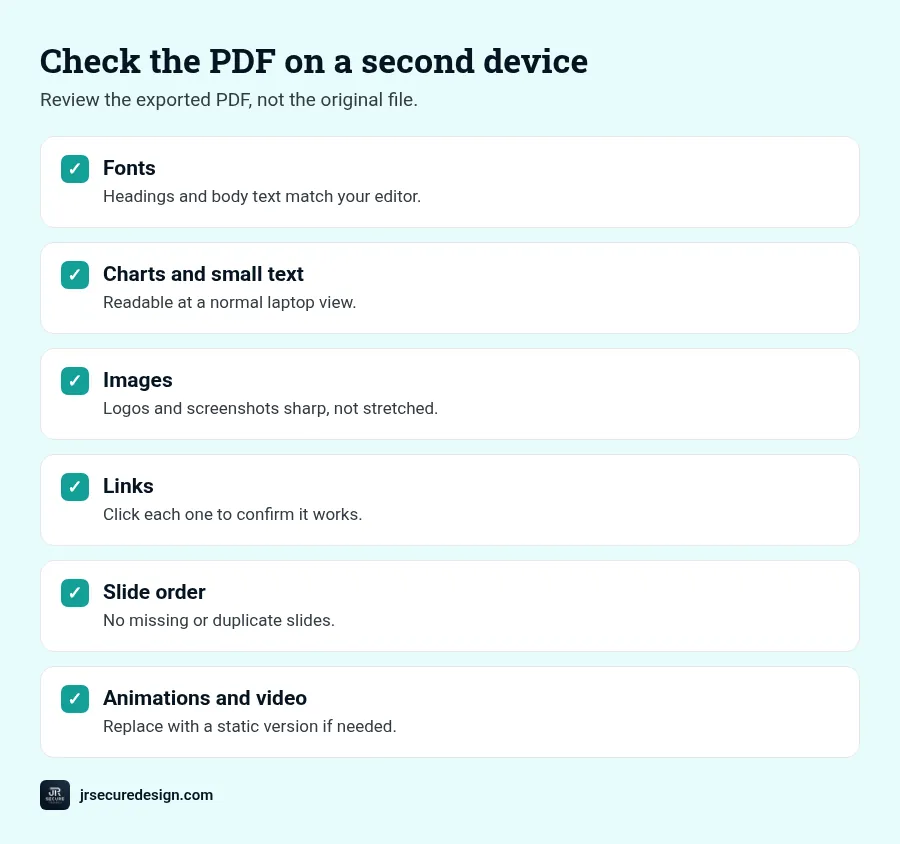
Don’t review the original file. Open the exported PDF, ideally on a different computer or a phone, because that’s closer to what a reader will see.
- Fonts: do headings and body text look the same as in your editor? If a font swapped, use a standard font or turn on font embedding in your tool’s save options, then export again.
- Charts and small text: zoom out to a normal laptop view. If labels are hard to read, make them bigger.
- Images: are logos and screenshots sharp, not stretched or blurry?
- Links: click each one, including your website and any demo link. Some tools keep links in PDFs; check that yours did.
- Slide order: page through once from start to finish. Any missing or duplicate slides?
- Animations and video: a PDF shows only a still image. If a slide depends on an animation or video to make sense, replace it with a static version or a screenshot plus a link.
Keep the file easy to open
- Keep the file size modest. Very large image files make a PDF slow to upload and open. Compress big photos or use your tool’s smaller-file option, then check that charts are still sharp.
- No password. Don’t password-protect the file. A reader who can’t open it won’t ask twice.
- Check page size. Keep the standard widescreen slide size you built in, so pages don’t get cropped.
PDF passes your checks?
Upload it today and keep a full day of margin.
Then book a 30-minute call. Or email sales@jrsdi.com.
Name it clearly
A clear file name helps your deck get found later. Use your company name and date, like this:
CompanyName-PitchDeck-Oct2026.pdf
Avoid names like “final-v7-REAL.pdf.” They suggest the deck is still changing.
Put your contact details inside the deck
Our upload form asks only for the file, so your name, email, phone and website need to be on the last slide. If the PDF gets passed around, your contact details travel with it. Our final pitch deck checklist covers what else to check on that slide.
Upload it
When the PDF passes your checks, upload it through the “Upload Pitch Deck (PDF)” box on our Startups page. Our pitch deck submission guide walks through each step. Doing it today gives you a full day of margin if anything goes wrong.
Get feedback before investors see it
JR Secure Design is hosting a free, online pitch deck competition on Wednesday, Oct 28 at 7 PM ET. Upload your pitch deck as a PDF at jrsecuredesign.com/startups by Sunday, Oct 25, 11:59 PM ET. Founders get feedback on story, feasibility and investor readiness from C-suite advisors, and the winner gets James DeCrescenzo as a free advisor to their company.
Want help making sure the product behind the deck can be built and secured? Our Fractional CTO service covers product, stack, security and AI decisions.
Frequently asked questions
Should I send my pitch deck as a PDF?
Yes. A PDF keeps your layout fixed, opens without special software and can’t be edited by accident. Our upload form accepts PDF files only.
How do I export Google Slides to PDF?
Open the deck and use File > Download > PDF document (.pdf). Then open the downloaded file and check fonts, charts and links before you send it.
Why do my fonts change when I export to PDF?
Usually because the font isn’t installed or embedded. Switch to a standard font or turn on font embedding in your tool’s save options, then export again and check.
Do links work in a PDF pitch deck?
Often, yes, but not always. Click every link in the exported PDF to confirm it works, and type out key web addresses on the slide as a backup.
What should I name my pitch deck file?
Use your company name and date, such as CompanyName-PitchDeck-Oct2026.pdf. Avoid “final” or version numbers in the name.
Ready to submit?
Deadline tomorrow. Get feedback from C-suite advisors.
Free, online pitch deck competition: Wednesday, Oct 28, 7 PM ET. Get feedback on story, feasibility and investor readiness. The winner gets James DeCrescenzo (25+ years in technology and security) as a free advisor to their company.
Upload your pitch deck (PDF) at jrsecuredesign.com/startups by Sunday, Oct 25, 11:59 PM ET.
Then book a 30-minute call. Or email sales@jrsdi.com.
Related reading: How to Submit a Pitch Deck · Final Pitch Deck Checklist · Common Pitch Deck Mistakes · Startups at JR Secure Design
If you can think it, we can build it securely. Artificial Intelligence · Security · Applications · Hardware